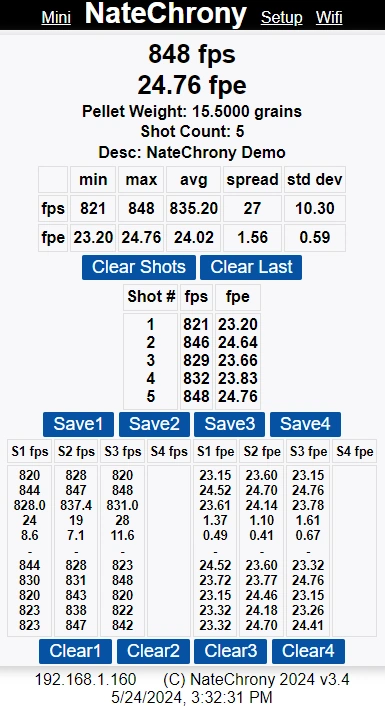
There have been some changes to the update process over time to make it easier. Please check your current version (bottom of the shoot page) to see which process applies to you.
Software Updates are free and available here: NateChrony Shop
NOTE: The conversion from a regular NateChrony v2.5 to a SteadyShot is a paid update, available here: v2.5 to SteadyShot Upgrade
You need to connect the NateChrony to an existing Wi-Fi network so that it has internet access, then you need to enter a code to update. This code is unique to your device and only valid for 7 days.
Select your current version to view the update process below:
Pre version 3.4
You will need a physical update for this older version of hardware. We recommend updating to the v2.5 NateChrony with the latest hardware.v3.4 through v5.4
These versions require a sensor block during the udpate process.- Go to the Wi-Fi page and connect to an existing Wi-Fi network
- Ensure you have a NON 0.0.0.0 address at the bottom, it is typically 192.168.1.x or similar
- Go to the setup page
- Block the front sensor (small battery, finger work well)
- Enter the update code in the Software field at the bottom of the page
- Keep the sensor blocked
- Hit set (keep sensor blocked)
- Count to 10 alligators
- Remove the sensor block
The update process will take 1-2 minutes.
v5.4+ or v6
These versions are much easier as no sensor block is required.- Go to the Wi-Fi page and connect to an existing Wi-Fi network
- Ensure you have a NON 0.0.0.0 address at the bottom, it is typically 192.168.1.x or similar
- Your Chrony should have a solid blue light to indicate its connected to an existing Wi-Fi network
- Go to the setup page
- Enter the update code in the Software field at the bottom of the page
- Hit set
The update process will take 1-2 minutes.
Upgrading v5/v6 to v7
This is a major upgrade & will take about 5-6min to complete.- Go to the Wi-Fi page and connect to an existing Wi-Fi network
- Ensure you have a NON 0.0.0.0 address at the bottom, it is typically 192.168.1.x or similar
- Your Chrony should have a solid blue light to indicate its connected to an existing Wi-Fi network
- Go to the setup page
- Enter the update code in the Software field at the bottom of the page
- Hit set
- It will reboot, then apply the first part of the update
- After another reboot it will flash green fast, then red
- Connect to the ChronyUpdater Wi-Fi network, and enter in your Wi-Fi details
- It will reboot and continue the update process
- It will flash white once per second for approximately 2min, then green flashes
- It will reboot (3 fast flashes), pause for 30-60sec and then start
- It will have a solid white light once complete, connect to the Chrony network
If the interface doesnt look right - missing an image or formatting, go to the Wi-Fi page and enter your Wi-Fi details in. It will reboot and get any missing files.
Last Updated: 2025-07-25 08:22:16 +1000 AEST